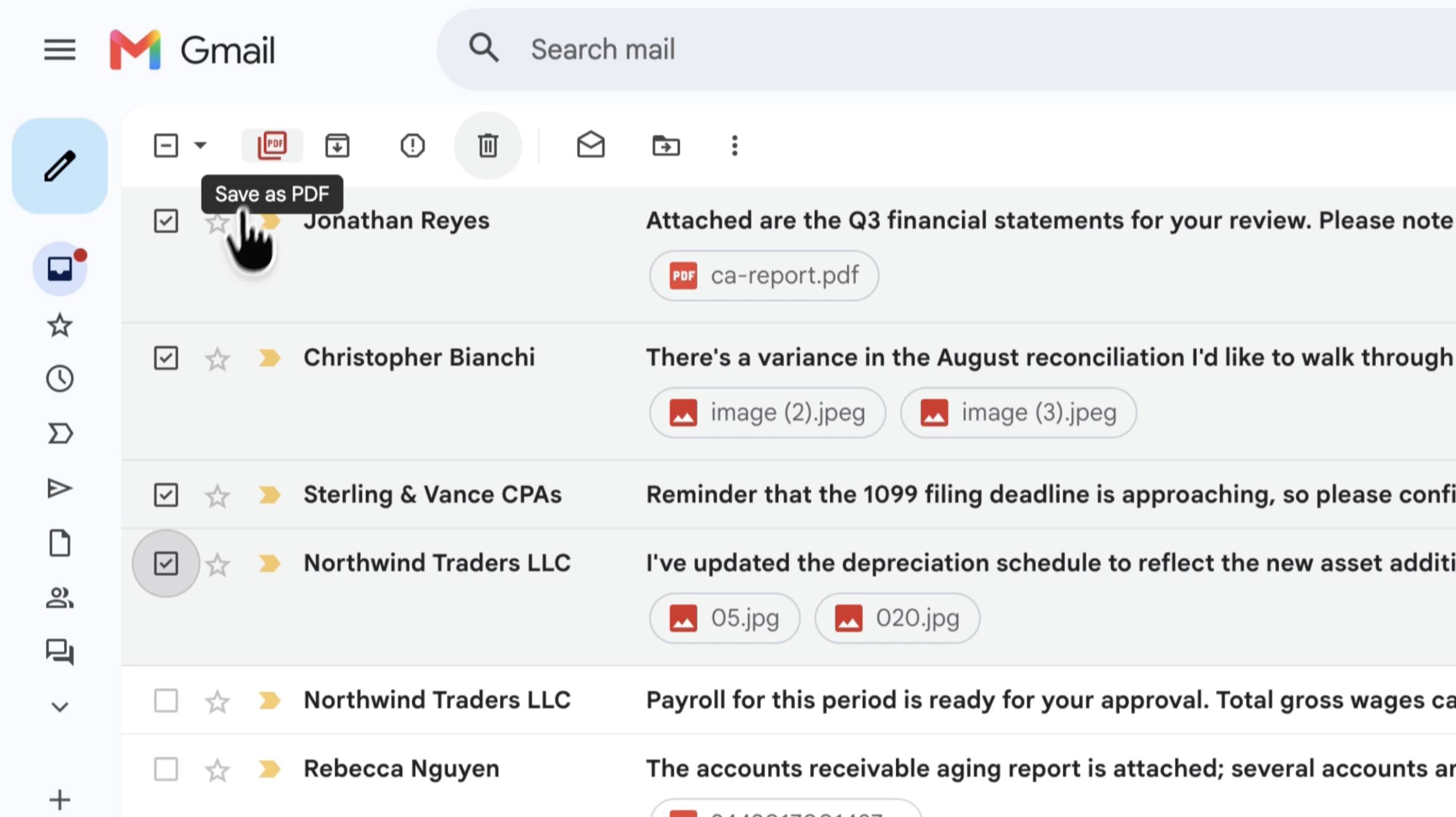
How to Save Gmail Emails as PDF (With Attachments)

The standard "Print to PDF" in Gmail cuts off text and completely ignores your attachments. Discover the professional way to export emails cleanly, directly from your inbox.

The Problem with Gmail's Default Print Feature

If you've ever tried hitting `Ctrl+P` or using the built-in "Print all" icon in Gmail, you already know the frustration. The default system creates messy documents, includes unnecessary sidebar menus, and worst of all, it completely leaves behind your important attachments.

The M2pdf Solution

M2pdf is built directly into the native Gmail UI. You don't need to forward your sensitive emails to a third-party service. By running locally in your browser, it captures the exact formatting of the email thread and bundles the original attachments into a clean, organized folder structure.

Key Advantages

  • Zero-Knowledge Privacy: Processing happens locally.
  • Native UI: Operates right inside Gmail.
  • Attachment Preservation: Files are saved automatically.
  • Gmail Search: Export emails using Gmail search and filters.
  • Clean Layouts: Removes unwanted headers and links.

How to Save a Gmail to PDF in 3 Steps

1

Install the Extension

Add M2pdf to your browser. You can start with our free tier to test the functionality before moving to a subscription.

2

Open Your Email

Navigate to your Gmail inbox. Search or filter emails by sender, label, or date and select the emails to save.

3

Click Export

Click the newly integrated M2pdf button directly in your native Gmail UI. Your clean PDF and attachments will download instantly.

Frequently Asked Questions

Common questions about saving your emails locally

Yes. M2pdf creates a clean document that looks exactly like your original email body. It automatically removes the messy sidebars and navigation menus that normal printing leaves behind.

Absolutely. We use a zero knowledge architecture. All processing happens locally on your own computer. We never store, read, or transmit your private emails to any external servers.

Yes. The extension automatically detects and downloads all original email attachments at the same time it generates your PDF file. Everything is saved neatly together.

The exported file is a standard PDF document. You can open it in any PDF reader, or use our free online PDF editor to add signatures, highlight text, or make changes later.

Ready to export your emails cleanly?

Start with 20 free conversions today.

View Pricing & Plans

Looking to backup your emails? See our Gmail backup guide.