How to Save Emails as PDF in Gmail, Outlook, Yahoo, and Apple Mail
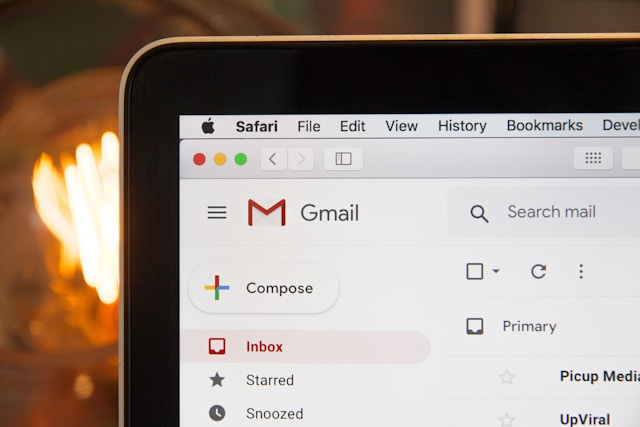
Saving an email as a PDF sounds like it should be one button, but every email service does it a little differently, and each one hides the option in a different place. A PDF is worth the effort: it preserves the exact layout, it opens on any device, and it is the format that legal, tax, and business records are expected in. This is why saving emails as PDF has become a common practice for keeping business and legal records.
Below is how to save an email as PDF in each of the major email services, followed by what to do when the built-in method is not enough, for example when you need to save dozens of emails at once or keep their attachments.
How to Save a Gmail Email as PDF
Open the email, click the printer icon near the top right of the message (or the three-dot More menu and then Print), and in the print dialog set the Destination to Save as PDF. Click Save and choose where to put the file.
The catch with Gmail is that this only handles one email at a time and it does not include your attachments in the PDF. If you deal with Gmail specifically and want batch exports or attachments kept with the email, see our dedicated guide on how to save Gmail emails as PDF.
How to Save an Outlook Email as PDF
The steps depend on which version of Outlook you use.
Outlook on the web: open the email, click the three-dot More actions menu at the top of the message, choose Print, and then in the print dialog set the destination to Save as PDF.
New Outlook and the desktop app: open the email, go to File and then Print (or press Ctrl and P), and choose Microsoft Print to PDF or Save as PDF as the printer. On the desktop app you can also use File, Save As, though that saves it in an Outlook message format rather than PDF, so the print route is the one you want for a true PDF.
How to Save a Yahoo Mail Email as PDF
Open the email in Yahoo Mail, click the More icon (three dots) above the message, and select Print. In the print dialog that opens, set the destination or printer to Save as PDF, then save. As with the others, this is a single-email, no-attachments method.
How to Save an Apple Mail Email as PDF
In the Mail app on a Mac, open or select the message, then go to File and choose Export as PDF, which saves the email directly as a PDF file. Alternatively, use File and Print, then click the PDF dropdown at the bottom of the print window and choose Save as PDF.
The Two Things the Built-In Method Cannot Do
Whichever service you use, the print-to-PDF method shares the same two limits, and they are the reason people go looking for a better tool.
It saves one email at a time
None of the built-in methods let you select twenty emails and export them together. Doing that by hand, one print dialog at a time, is slow and error-prone when you are archiving a whole project, a tax year, or a client's history.
It drops your attachments
Printing an email to PDF captures the message body, but the attached files are left behind. For records where the attachment is the important part, an invoice, a signed contract, a receipt, that is a serious gap.
Saving Many Emails as PDF at Once
When you need bulk exports or attachments included, a dedicated tool is the answer. If you use Gmail, the M2pdf Chrome extension adds a Save as PDF button right inside Gmail and lets you:
- Select many emails and export them in one click, or convert a whole label or search result
- Embed image and PDF attachments directly into the PDF, or save them alongside it
- Keep everything private, since conversion happens locally in your browser and your email never leaves your device
- Preserve the original formatting of each message
If your emails are already exported as files rather than sitting in an inbox, you can also convert them without any inbox at all: our free browser tools handle EML files and MBOX mailboxes, both locally and with no upload.
Why Save Emails as PDF at All?
- Read your emails offline, with no account or internet needed
- Open them on any device without formatting or compatibility issues
- Share a record with someone who has no access to your inbox
- Keep clean, dated records for tax, legal, or business purposes
For a one-off email, the built-in print method in your email service is perfectly fine. When you are archiving in bulk, or the attachments matter, that is when a dedicated tool saves real time and keeps the records complete.